Security Devices
Add an extra layer of protection against fraud with a Security Code.
What is a Westpac Protect™ Security Code?
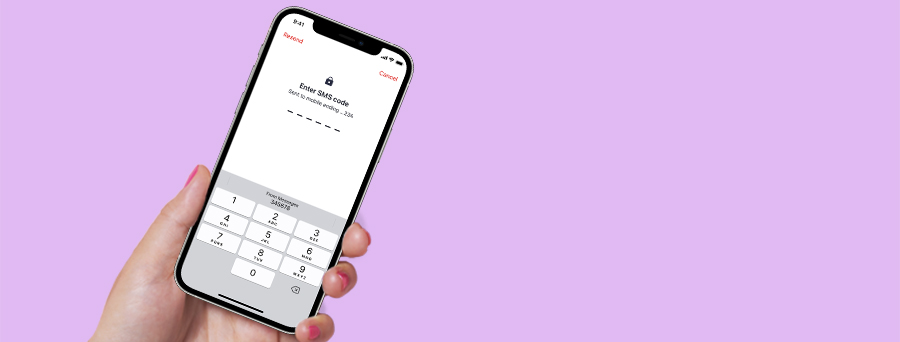
A Security Code is a one-time passcode that is sent to your registered Security Device. This helps to add another layer of protection when banking online by confirming it’s you who’s making transactions or changes within your account. |
Types of Security Devices
The Security Code will be sent to any one of the following devices that you've registered for.
Westpac Protect™ SMS Code
A Security Code sent via text message to your registered mobile phone.
Security Code via the App
A Security Code is sent via a notification directly from the Westpac App1 .
SecurID® Tokens
A small, portable device that generates a digital Security Code, without the need of a mobile service.
Extra security for your protection when banking online
You may be prompted for a Security Code when:
- Signing into Online Banking
- Paying a new payee
- Making an International Payment
- Increasing your daily payment limit
- Updating your personal contact details
- Changing or resetting a forgotten password before signing in
- Accessing Administration if you're a network administrator (also for business network).
Security Tip:
Never share your Online Banking Security Codes with anyone. Westpac will never ask for these.
How to register for a Security Device?
You can activate this feature either in the Westpac App or Online Banking as long as your mobile number is listed in your profile.
To add your mobile number to the account, call us on 1300 655 505 8am-8pm Sydney time, 7 days a week or +61 2 9155 7700 if overseas.
In the Westpac App
Make sure you have the latest version of the app.
1. Search Security Code and Token in the Smart Search bar
2. Tap Register for SMS Code
3. Confirm your mobile number and tap Confirm number
4. Enter the SMS Code sent to your device
5. Tap Continue.
In Online Banking
Personal customers
1. Go to Service > Preferences > Security
2. Go to SMS Code and select Activate
3. Confirm your mobile number and select Confirm
4. Enter the SMS Code sent to your device
5. Select Authorise.
Business administrators
1. Go to Service > Preferences
2. Select User administration
3. Select the user and then select SMS Code.
You can activate this feature only in the Westpac App1.
Please note this is available only for a Personal profile.
In the Westpac App
Make sure you have the latest version of the app.
1. Tap Profile
2. Then go to Settings > Security Code and Token.
See the steps on how to activate your SecurID® Tokens.
See the steps on how to activate, replace or assign your SecurID® Tokens.
Use your Digital Card
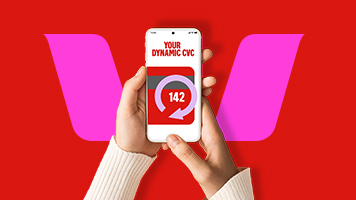
Find the digital version of your card* in the Westpac App. With a dynamic CVC security code that changes every 24 hours, it reduces the risk of fraudulent activity, if your details are compromised.
Get alerts from the App
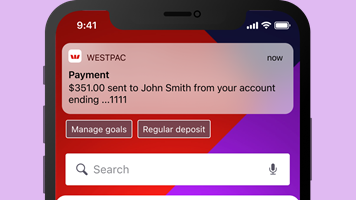
Get helpful, real-time reminders like deposit, withdrawal, credit card repayment and security notifications when there are changes to your accounts.

Take the Security Wellbeing Check
Improve the security for your Online Banking via the App. We’ll let you know what you can do to protect yourself and your accounts.


Things you should know
1. Eligibility for Security Code via the App:
- Westpac App version 10.13 and above
- Valid for personal profile only
- Push notifications must be activated
- Have an active Westpac Protect™ SMS Code status.
2. This special offer for security software is not an endorsement from Westpac. McAfee Multi Access™ is offered by McAfee. Information above is a general description only, using the link provided will take you to an external website. Please visit McAfee Support for any installation or product related questions. Westpac recommends that you do not access Online, Mobile or Tablet Banking if you are concerned your computer may be infected with malicious software.
* The Digital Card is only available in the Westpac App and supported with the latest version of the Westpac App. The terms and conditions applicable to your product also apply to the use of your digital card. Online Banking Terms & Conditions also apply. You may not always be able to access your digital card.
iPhone, iPad, iPod touch and Apple Watch are trademarks of Apple Inc., registered in the U.S. and other countries. App Store is a Service mark of Apple Inc.
Android, Google Play and the Google Play logo are trademarks of Google LLC.