
Track my pre-settlement application: 3 steps
The fast and simpler way to review, accept and upload your home loan documents online.
Received your loan offer? Congratulations!
This easy-to-follow guide helps you progress to settlement online in your own time. Feel free to save and come back later.
Your guide to becoming settlement-ready
To lower the chance of delay, finish all 3 steps well before Settlement Day.
Accept your loan offer online
Let’s seal the deal. Sign into the Westpac App or Online Banking, and follow the steps.
Submit your Loan Authority form
Nominate your account, set up repayments and share your solicitor’s details.
Upload settlement documents
Check your list of documents we still need, follow the prompts and upload them. Simple.
Frequently asked questions
All you need to know about checking, accepting and uploading documents online.
Before you get started
You can accept all, or most, of your documents online.
- Simple. Review in your own time, clarify with your Home Finance Manager or Broker before signing.
- Direct. Connects to our system for instant access right up to settlement.
- Faster. No manual processing, less chance of settlement delays.
- Secure. All in one place, can’t get lost in the mail.
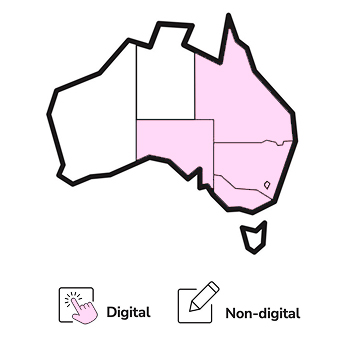
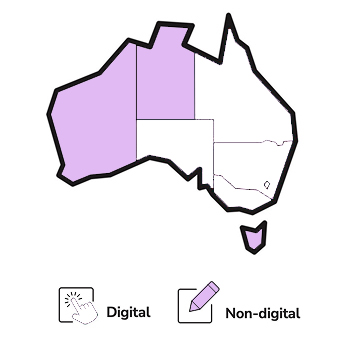
1. Accepting your Loan Offer online
Sign into the Westpac App or Online Banking, and follow these steps:
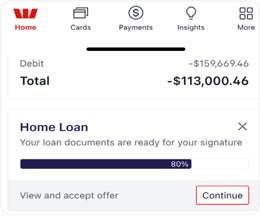
On the main page, go to your home loan progress bar > Select Continue to go to Track your application
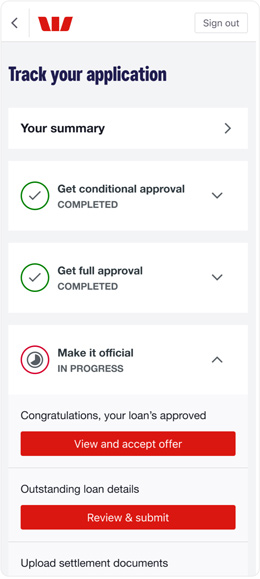
2. Submitting your Loan Authority form online
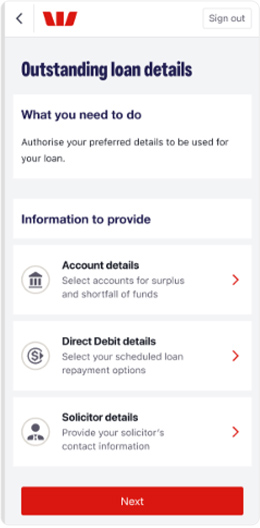
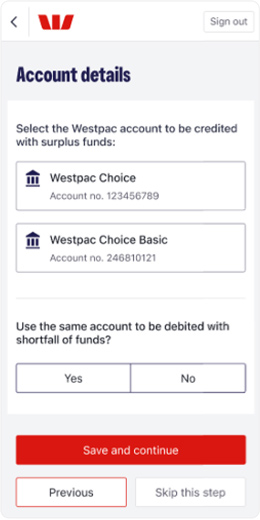
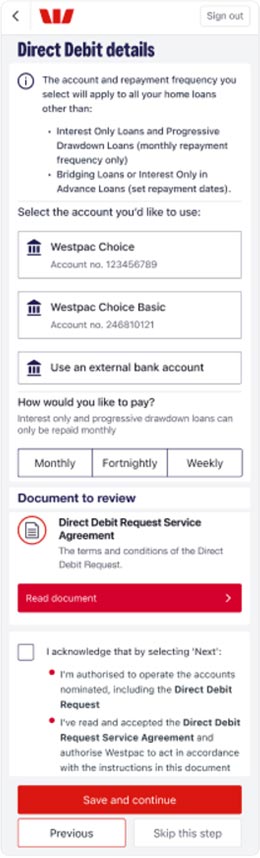
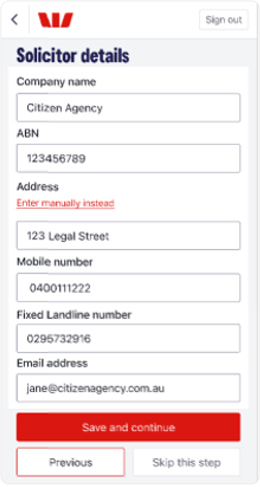
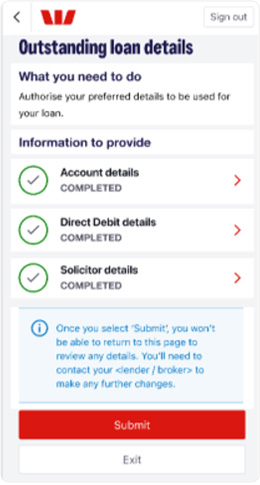
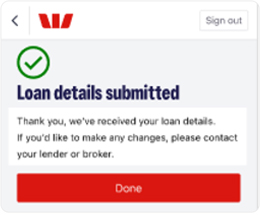
Nominate an account, set up your repayments and share your solicitor’s details.
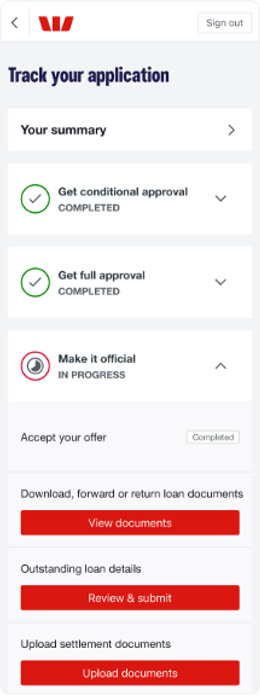
- Go to Home Loan > Select Continue > Track your application
- Select Make it official
- Under Outstanding loan details, select Review and submit
3. Upload settlement documents
Sign into the Westpac App or Online Banking, check your list of documents, follow the prompts and upload them. Simple.
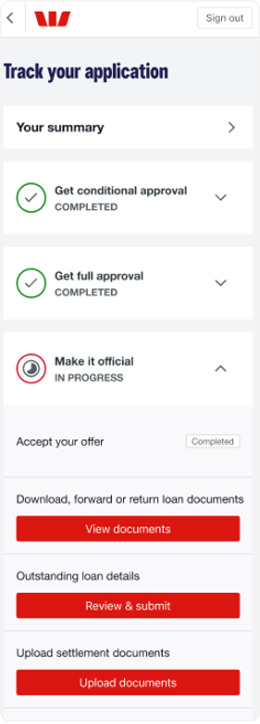
- On the main page, go to your home loan progress bar and select Continue > Track your application
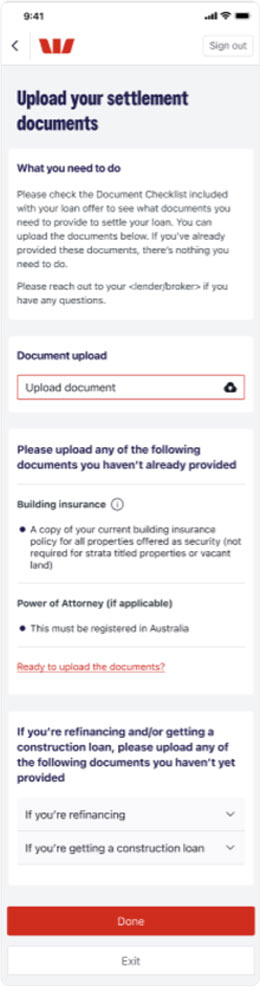
- Select Make it official > Upload settlement documents > then select the Upload documents button.
FAQs about pre-settlement documents
- Check your loan offer cover letter for the Document Checklist.
- Or go to the Track your application dashboard, go to Make it official > Upload settlement documents to see the list.
Need help finding them? Ask your Home Finance Manager or Broker.
- Sign into the Westpac App or Online Banking
- Go to your home loan progress bar: Your loan documents are ready for your signature – View and accept offer.
- Select Continue > You’ll be taken to the Track your application dashboard.
- Under Make it official > Select View and accept offer.
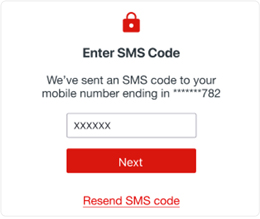
- Enter the one-time SMS code sent to the mobile number you’ve provided.
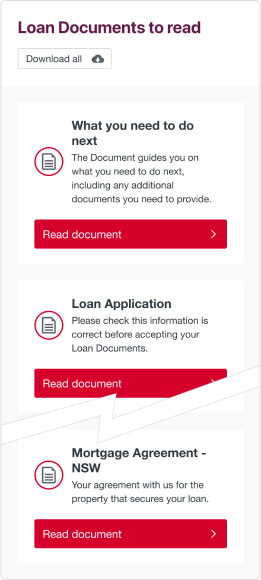
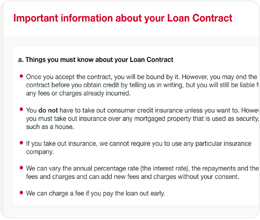
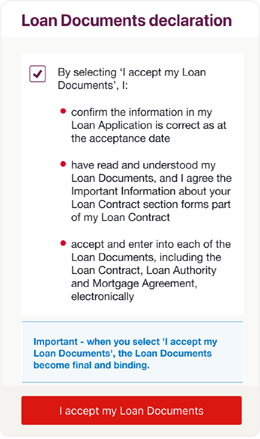
- You’ll be taken to your Accept your Loan Documents screen where you can view and read your documents.
If we don’t need to confirm details, they won’t appear as Outstanding loan details in this online form.
Still need a hand? Your Home Finance Manager or Broker can help
Tips:
- Be organised. If you have documents to accept, check, sign and return them quick-sharp.
- Attention to detail. Before signing your loan documents, check the deposit amount hasn’t changed, your name’s spelled correctly etc. And if you have a mortgage Broker, have them double-check everything.
Accept & upload online.
- Faster. No manual processing, less chance of settlement delays.
- Direct. Connects to our system for instant access right up to settlement.
- Simple. Review in your own time, clarify with your Home Finance Manager or Broker before signing.
- Secure. All in one place, can’t get lost in the mail.
- Coordinate. Work closely with your conveyancer and Home Finance Manager or Broker to help move everything along smoothly.
- In the Westpac App or Online Banking, each borrower gets their own message in their home loan progress bar to accept the loan documents.
- Once everyone’s accepted, the process is complete.
- Anyone borrowing together can upload the documents.
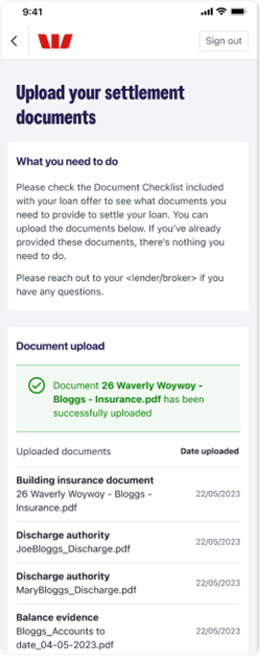
- If one borrower has already uploaded the right documents, the action is complete. You can check what’s been uploaded on the Upload your settlement documents screen.
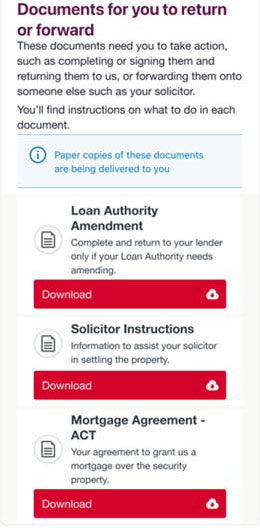
Use the physical form in your Download, view or return document section. You can find, download and print it by going to View Documents > Documents for you to return or forward > then download and print Loan Authority Amendment.
Still need a hand? Your lender or broker can help.
Once you’ve accepted your documents online, you can find a copy on the Track your application dashboard:
Select View documents > Select Download all
You may also see other documents that need actioning, like:
- Loan Authority Amendments
- Solicitor Instructions
- Mortgage Agreement for non-digital states and territories
Good to know
These documents are only available here until settlement.
FAQs about setting up Online Banking
During your home loan application, we’ll ask if you want to use Online Banking. If you say “yes” we’ll set it up for you. You also need to agree to get emails and texts from us so we can send you your Online Banking details.
Your Customer ID
Never been a Westpac customer before? We’ll create a Customer ID for you to use Online Banking. If you have been a customer before, you might already have a Customer ID, and we’ll just enable your Online Banking profile.
Your temporary SMS password
If you’re new to Online Banking, we’ll send you a temporary password by SMS so you can sign in for the first time.
If you didn’t receive a temporary password by SMS, it might be because:
- You didn’t agree to getting texts and emails from us.
- The mobile number you gave us in your application doesn’t match the one you use.
- You’re overseas and don’t have access to the mobile number you gave us.
- Network or tech issues.
To fix this, you can:
- Call 132 558 and follow the prompt For all other loan enquiries.
- Tell them you're applying for a home loan and need help with Online Banking
- They’ll ask a few questions to make sure it’s really you, like your name and loan application details.
- Once verified, they can confirm your Customer ID and that you’ve agreed to getting texts and emails. They’ll send another temporary SMS password, and help you get set up.
If your identity can’t be verified over the phone, you’ll need to visit a branch with photo ID. This ensures your info remains secure.
If you didn’t get the email with your Customer ID, it might be because:
- You didn’t agree to getting emails from us.
- The email you gave us in your application doesn’t match the one you use.
- Network or tech issues.
To fix this, you can tell your Home Finance Manager or Broker that you didn’t get the email. They can help by checking if you agreed to get emails, and by giving you your Customer ID.
Or you can call us on 132 558:
- Follow the prompt For all other loan enquiries.
- Tell them you're applying for a home loan and need help with Online Banking
- They’ll ask a few questions to make sure it’s really you, like your name and loan application details.
- Once verified, they can confirm your Customer ID and that you’ve agreed to getting texts and emails. They’ll send another temporary SMS password, and help you get set up.
If your identity can’t be verified over the phone, you’ll need to visit a branch with photo ID. This ensures your info remains secure.
No, you can’t. If you have an active temporary password, you won't be able to use the Register for Online Banking option on our website. Instead, you should follow the instructions in your Customer ID email.
We want to make sure your info stays safe and secure. Sometimes, to be extra careful, we need to check who you are in person at a branch. To do this, you need to bring photo ID, like a passport or driver licence. You may need to visit a branch if:
- You can’t answer the security questions over the phone.
- Your address needs fixing, and your lender or broker can’t help update it.
- Your date of birth date isn’t recorded (only if you became a customer before 1 July 1985).
- We think something unusual might have happened to your account.
- We don’t have enough details to check who you are online or over the phone.
Visiting the branch helps us be sure that it’s really you, so your details stay safe.
Track it in the Westpac App
Accept and upload documents on Australia’s Best Banking App*.


Things you should know
Conditions, credit criteria, fees and charges apply. Residential lending is not available for Non-Australian Resident borrowers.
This information is general in nature and has been prepared without taking your personal objectives, circumstances and needs into account. You should consider the appropriateness of the information to your own circumstances and, if necessary, seek appropriate professional advice.
Any tax information described is general in nature and it is not tax advice or a guide to tax laws. We recommend you seek independent, professional tax advice applicable to your personal circumstances.
*This claim is based on The Forrester Digital Experience Review™ of 4 Australian mobile banking apps in Q3 2025. Future findings are subject to change. Forrester does not endorse any company or brand, nor their products or services, nor advise anyone to select them based on this review. If you want to learn more, go to the Forrester website.