Passkey
With passkeys, you can sign in to Online Banking faster and more securely*, without needing a password.
What is a passkey?
A passkey is a sign-in method that uses your device to confirm it’s you. Instead of entering a password, you can sign in to Online Banking using the method you’ve already set up to unlock your phone, tablet or computer — such as your fingerprint, face recognition or passcode.
Why use a passkey?
Faster sign-in
No passwords to enter. Sign in using the same way you log in to your device — such as your fingerprint, face recognition, or passcode.
Uses your device’s security
Passkeys can help protect your account from phishing and password theft as your device verifies it’s you, without using a password.
Works across your devices
Use your passkey on your trusted phone, tablet or computer for an easier sign-in experience.
How a passkey works
When you sign in, a passkey works by using a secure digital key stored on your device and a matching key held by Westpac. When you confirm it's you using your device's security features, such as your fingerprint, face recognition or passcode, you'll be signed in to Online Banking.
Important note:
- Anyone who can unlock your device may be able to sign in using your passkey. Keep your device secure and don't share access to it with others.
- Only use passkeys on trusted devices you control. If your device is lost or stolen, remove that passkey from another trusted device or contact us for help.
How to create your passkey
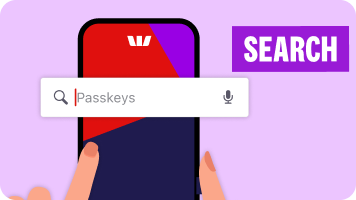
1. Search 'passkeys'
Use the search function in the Westpac App or Online Banking to find your passkey settings.

2. Create a passkey
Select Create passkey and complete the setup using your device’s built-in security, such as your fingerprint, face recognition or passcode.

3. Use your passkey to sign in
Next time you sign in, select Use Passkey — you won't need a password.
Frequently asked questions
Passkeys work on compatible devices, browsers and Westpac App versions that support them. If you're using the Westpac App, you'll need version 12.2.3 or later on iOS and Android.
Compatible devices and browsers:
- an Apple device with iOS 16, iPadOS 16, macOS Ventura or higher
- an Android device with Android 9 or above
- Microsoft Edge, or Google Chrome on Windows
- Microsoft Edge, Safari, or Google Chrome on macOS
- ChromeOS
Yes. If your passkey is saved in a password manager that syncs across your devices, such as Apple Passwords or Google Password Manager, you can use it on your phone, tablet and computer when you're signed in with the same account.
If your passkey isn't synced across your devices, you can still sign in on another device using a passkey stored on a nearby phone or tablet.
To sign in directly on a device without using another device, you'll need to create a passkey on that device.
If your device is lost or stolen, sign in to Online Banking from another trusted device and remove the passkey from Passkey Management. If you can't access Online Banking, contact the bank for assistance.
Note: if you use a passkey provider that syncs passkeys across your devices, you can still sign in on another synced device.
You can register up to 5 passkeys to your Online Banking account. Once the limit is reached, you'll need to delete an existing passkey before creating a new one.
Once you've set up your passkey, you can use it to sign in instead of your password. There are some situations where you may still need your password e.g. if you sign in to Online Banking on a device where you haven't set up a passkey.
Yes. You can remove a passkey anytime in the Westpac App, Online Banking or your device’s password manager. If you change your mind, you can create a new one later.
No. Deleting a passkey in the Westpac App only removes it from your Westpac account. If you also want to remove it from your device, you'll need to delete it from your device's password manager or passkey provider.
You can create or use a passkey on another device using cross-device authentication. Simply scan the QR code displayed on the screen with the device that holds your passkey and approve the request. For security, both devices must be nearby and connected to the internet.
You should only set up a passkey on a device you own and control. A shared device is any device that other people can regularly access or unlock. Because a passkey is linked to the device or password manager it’s stored in, anyone who can unlock your device or access the password manager on your device may be able to sign in to your account.
If you de-register from Online Banking, all passkeys associated with your Online Banking profile will be removed and can no longer be used to sign in. If you register again in the future, you'll need to set up new passkeys.
To learn more about how passkeys work and their security benefits, visit the Australian Cyber Security Centre's guide on passkeys: https://www.cyber.gov.au/publication/personal-cyber-security-handbook/core-cyber-security-tips
Things you should know
* Source: Australian Cyber Security Centre - https://www.cyber.gov.au/publication/personal-cyber-security-handbook/core-cyber-security-tips
Apple, the Apple logo and iPhone are trademarks of Apple Inc., registered in the U.S. and other countries. App Store is a service mark of Apple Inc.
Android, Google Play and the Google Play logo are trademarks of Google LLC.
Windows is a trademark of the Microsoft group of companies.