
Payto for Business Payers
Visibility and control over payments from your business network.
What is PayTo®?
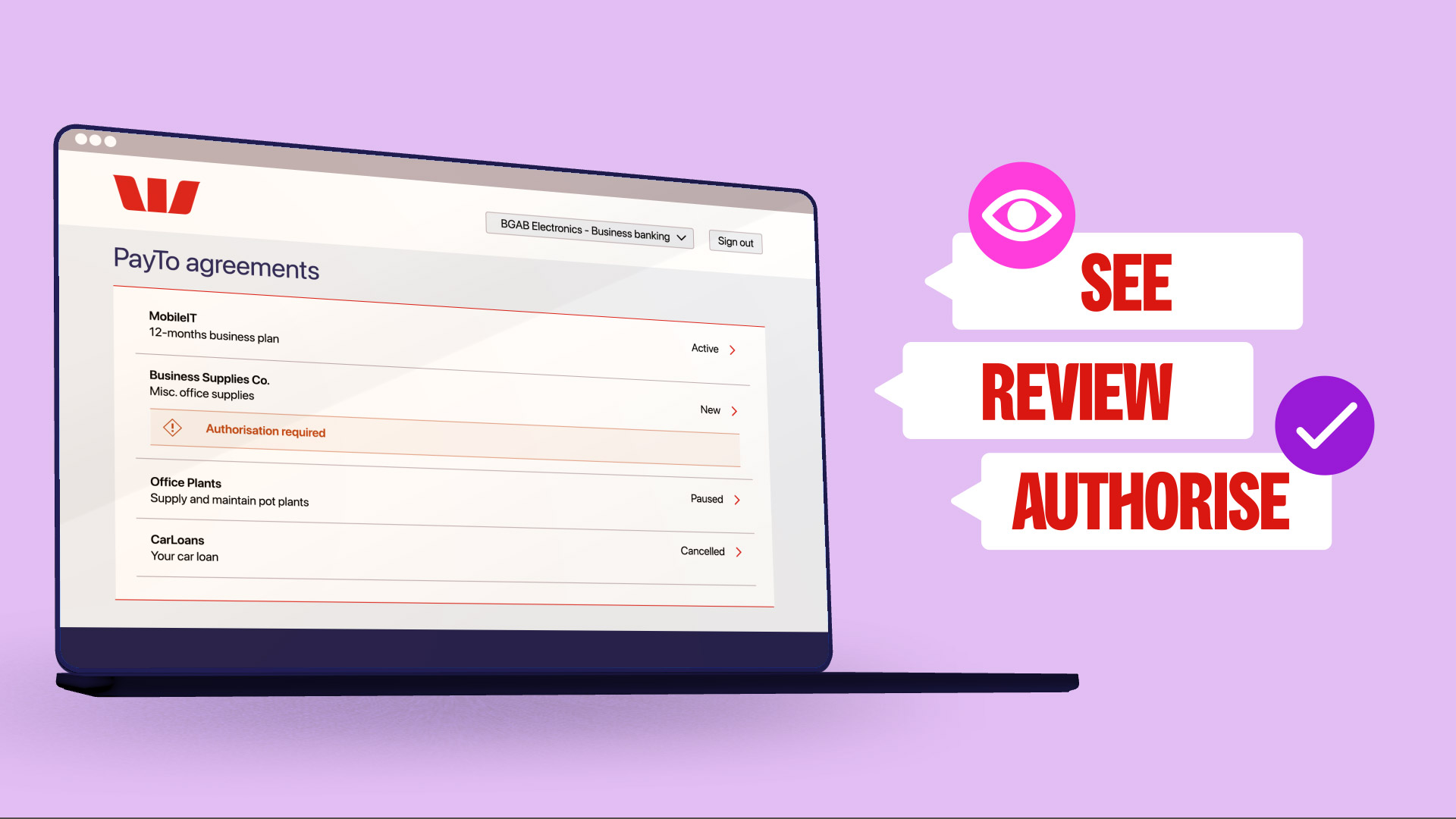
PayTo® - a new and secure payment option that gives you visibility and control over your payments from your bank account.
- View, authorise, cancel or pause your PayTo payments.
- Keep track of recurring bills and ongoing payments.
- All managed in Westpac Online Banking or the Westpac App.
PayTo is an industry payment initiative, developed by New Payments Platform Australia (NPPA), a wholly owned subsidiary of Australian Payments Plus, Australia's domestic payment organisation that also includes BPAY® Group and eftpos.
Why choose to pay with PayTo?

Security
All new PayTo agreements need to be authorised by you in Online Banking or the Westpac App before a business can take a payment.

Simplicity
It's easy to set up PayTo with either your PayID or eligible BSB and account number.

Visibility
You can see all your PayTo agreements in one place and know when payments are due to come out of your account.

Flexibility
It's easy to switch the Westpac accounts linked to your PayTo agreements, or to pause or cancel agreements at any time.
How to use PayTo
Watch the following video, or read the steps below to see how easily you can set up and use PayTo.

The Business Network Administrator will switch on PayTo and allocate users and permissions.

Look for the PayTo symbol when setting up recurring bills or paying for Business supplies. Enter your PayID or eligible BSB and account number.

Allocated Network users will receive a notification to review and authorise the new PayTo agreement.

Congratulations! You can now view, pause or cancel your PayTo agreements at any time in Online Banking or the Westpac App.
Before you set up PayTo
To receive, view and authorise PayTo agreements for your business network:
- The account must be PayTo enabled
- The account must have value access
- A Business Network Administrator must turn on PayTo
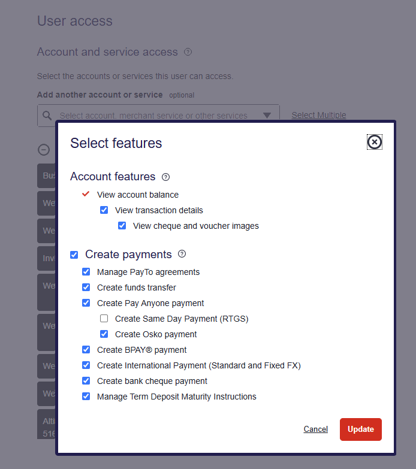
- Relevant users must be given access to manage PayTo agreements.
You need administrator access to complete these steps.
Network Administrators – how to turn on PayTo
Sign in to your Business Network profile in Westpac Online Banking via a Desktop:
- Go to the Administration menu option and then Features and approvals.
- Select Manage PayTo agreements and set the number of approvers you require.
- Select Manage restricted payment frequency PayTo agreements (if you choose to) and set the number of approvers.
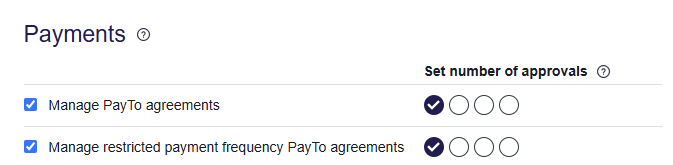

Pausing, resuming or cancelling a PayTo agreement only requires one user (who has the Manage PayTo agreements feature allocated). Please keep this in mind when allocating users for PayTo.
Frequently asked questions
Personal accounts:
• Westpac 55+ and Retired
• Westpac Choice
• Westpac Choice Basic
• Westpac Choice Plus package
• Westpac Choice Student
• Westpac Choice Youth
• Westpac DIY Super Working Account
Business accounts:
• Bank Bill Business Loan
• Business Account
• Business Cheque Account
• Business Cheque Plus Account
• Business Loan
• Business Overdraft
• Cheque Account
• Project Trust Account - QLD
• Retention Trust Account - QLD
• Statutory Trust Account - Controlled Money A/c
• Statutory Trust Account - Conveyancers
• Statutory Trust Account - Motor Dealers
• Statutory Trust Account - Real Estate Agents
• Statutory Trust Account - Solicitors*
• Westpac Agri Finance
• Westpac Business Equity Access Loan
• Westpac Business One
• Westpac Business One Plus
• Westpac Cash Investment Account
• Westpac Community Solutions One
• Westpac Strata
*not all Statutory Trust Accounts are eligible
Corporate Accounts
• Cash Management Account
• Corporate Cheque Account - Basic
• Corporate Cheque Account - Regulated Interest
• Corporate Cheque Account - Standard Interest
• Security Investment Account
• Segment account
• Set-Off Account
Select PayTo as a payment option at a participating merchant or business and provide them your BSB and Account number or PayID.
A PayTo agreement will be sent to you in your Online Banking, which you can review and authorise.
Use the following directions to log in to Online Banking or the Westpac App to review and authorise the PayTo agreement.
Personal or Sole Trader:
- Online Banking: Service > Services > Account services > PayTo agreements
- Mobile Banking: Search PayTo > select PayTo agreements
If you’ve been given Shared Access (Personal Network) to an account, and can’t see the PayTo option, you will need to contact the Account Owner, as they will need to allocate the PayTo feature for you in Online Banking.
Business Network:
- Online Banking: Service > Services > Account services > PayTo agreements
- Mobile Banking: Profile > Payments > Payment agreements > PayTo agreements
Business Network Administrators: Before a PayTo agreement can be received, you’ll need to switch on the PayTo feature in Online Banking, allocate users and set permissions. If PayTo isn’t switched on, or there are no users selected, the PayTo agreement will be automatically declined, and you’ll need to contact the biller to re-send it.
Business Network users: If don’t see the PayTo option, contact your Network Administrator and ask them to provide you access to PayTo.
Once a PayTo agreement is authorised, payments will be debited as per the terms.
PayTo is a new digital alternative to the existing Direct Debit payment method, allowing you to manage payments from your bank account. Giving you more visibility and control through Westpac Online Banking or the Westpac App, PayTo can be used to process both regular scheduled payments like a Direct Debit, or one-off real-time payments like a credit or debit card.
If you are unable to receive PayTo agreement, it may not be enabled in your settings.
To view and authorise PayTo agreements, make sure Manage PayTo agreements is switched on under Features and Approvals. You will also need to edit user access from User Administration and enable PayTo for the account to be debited.
For security reasons, agreements that allow merchants to debit your account anytime (ad hoc) or daily (restricted frequency) must also be enabled:
- At the business network level (Manage restricted payment frequency), and
- For each individual user who needs to authorise the agreement including administrators from User Administration.
If you’re expecting a PayTo agreement for employer superannuation contributions, these are typically set up as anytime (ad hoc) agreements and must be enabled at the user level before they will appear for authorisation.
Ensure the required settings are enabled first before requesting your provider to send or resend an agreement.
Things you should know
Read the Westpac PayTo Terms and Conditions (PDF 417KB) , Westpac Online Banking Terms and Conditions (PDF 899KB) , Westpac Personal Telephone Banking Terms and Conditions (PDF 518KB) and Westpac Group Telephone Banking Terms and Conditions (PDF 810KB) before making a decision and consider whether the product or service is right for you. Online Banking is subject to outages from time to time.
BPAY is ® Registered to BPAY Pty Ltd ABN 69 079 137 518.
PayID® and PayTo® are registered trademarks of NPP Australia Limited.